Network config - TCP/IP settings for Wifi Router
Description:
If you want to use a Wi-Fi router, the DormNet IP information must be
configured on the router itself; your computer only needs to connect to
the Wi-Fi. As for how to set a static IP on the router, there are too many
brands and models on the market for us to give unified instructions, so
please look up the user manual for your specific device online.
Example for ASUS RT-AC66U

Step1
- 1. Connect the Ethernet cable: Plug one end of the cable into the dormitory network port, and the other end must be connected to the WAN port of your router.
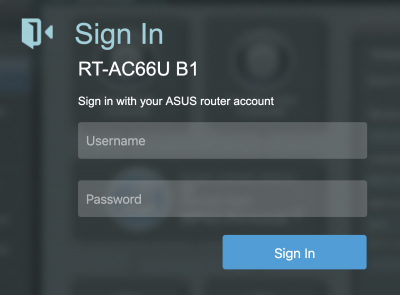
👉 Important: It must be connected to the WAN port only! WAN only! WAN only! - 2. Log in to the router management interface: After connecting, please open a browser and enter your router’s management address (usually 192.168.0.1 or 192.168.1.1). You will then be able to access the graphical management interface for further configuration.

Step2
- 1. Click WAN
- 2. WAN Connection Type choose Static IP.
- 3. Fill in your Dormitory Network IP Information for WAN IP Setting and WAN DNS Setting.
Other settings (such as DHCP) use the default value as shown in the following figure:

Step3
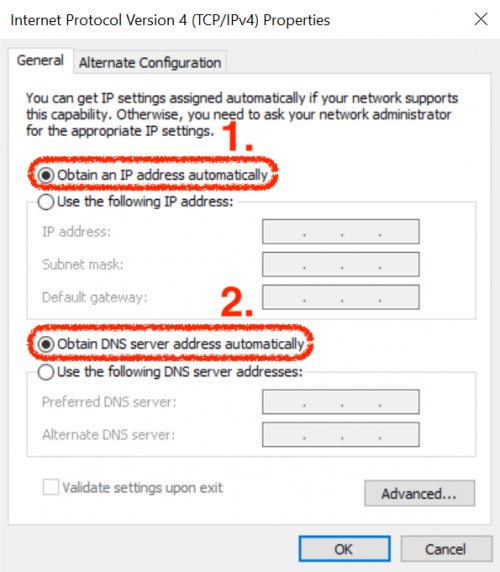
- 1. Find and select “Internet Protocol Version 4 (TCP/IPv4)”, then click “Obtain an IP address automatically”.
- 2. Click “Obtain DNS server address automatically” and click “OK” to submit.
- 3. If you are a macOS (Apple computer) user, please follow the guide below to configure your network.
If you are not using macOS, this instruction does not apply to you, and you may disregard it.


Step4
- Network config completed, feel free to connect the Internet.
—-
If any questions, please contact us.
E-mail: dorms@cc.nthu.edu.tw
Phone: (03)5715131#31178
Service time: Mon-Fri 8.30am-12.00pm & 1.30pm-5.00pm
Sincerely,
Network System Division from Computer & Communication Center


