Table of Contents
Installation and Use Instructions of Ivanti Secure Access Client or Pulse Secure on PC
Read Before Installation
- Please refer to TWAREN SSL VPN Service Information
- For use by University faculty, staff, and students with a 「campus wireless LAN account 」only.
- Account:
username@wlan.nthu.edu.tw, please enter whole name.
Ivanti Secure Access Client or Pulse Secure Manually Download & Setup
Download either Ivanti Secure Access Client or Pulse Secure
- Please download either Ivanti Secure Access Client or Pulse Secure setup file for each platform(login password: nchc), and install it mannually.
Setup either Ivanti Secure Access Client or Pulse Secure. Take Ivanti Secure Access Client for example
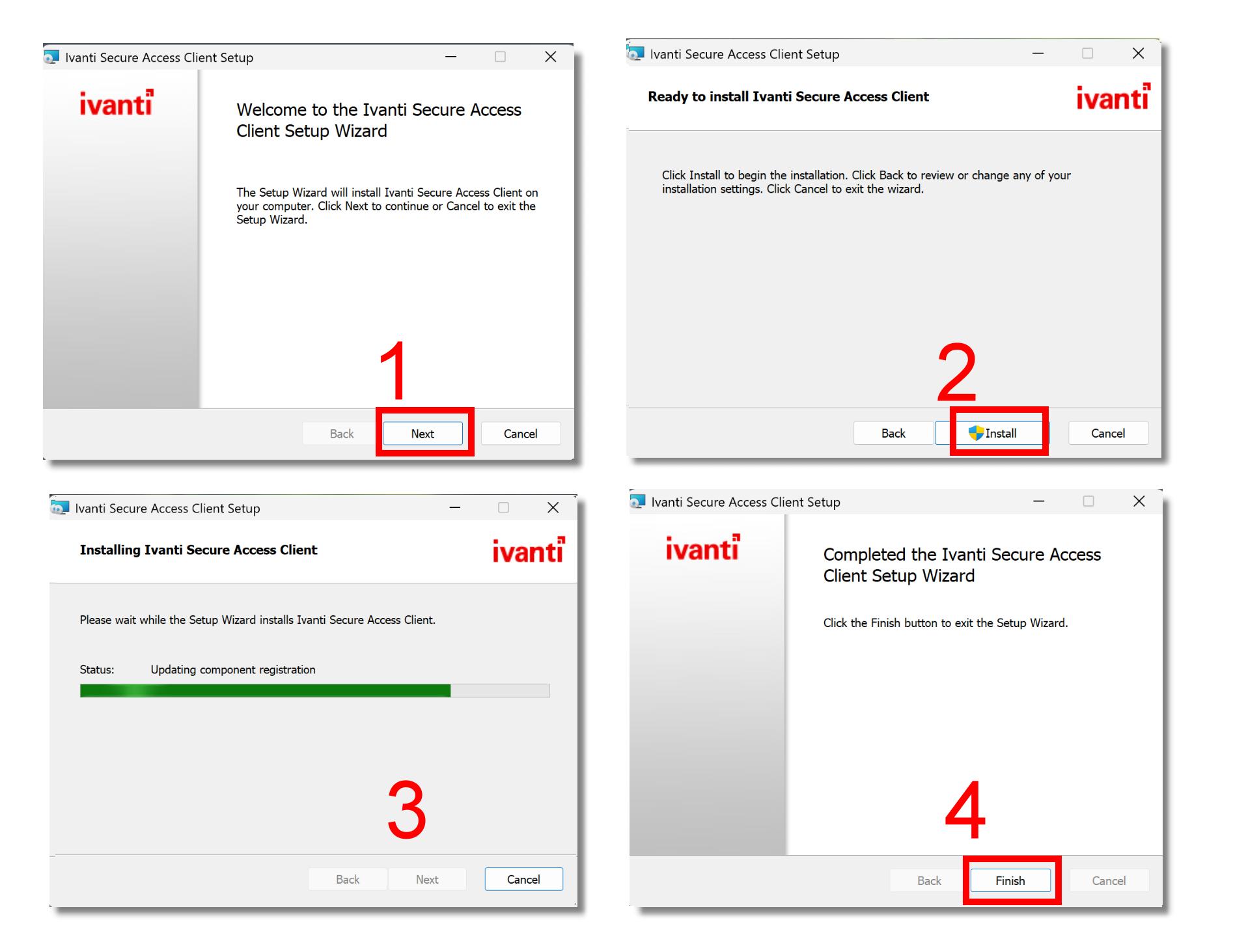
- Step1: Open the downloaded Ivanti Secure Access Client setup file and install it by the following steps.
- Step2: Before connecting SSL VPN, the following configurations might be requested.
- Click [ + ] button, enter “nthu.twaren.net” in the fields of [Name] and [Server URL].
- Click [connect].


- Step3: For authentication, enter campus wireless LAN account and password.

- Step4: View the connection information of SSL VPN. To end the VPN, please click [Disconnect].

- Step5: To run Ivanti Secure Access Client again, follow the authentication steps shown in Step2 ~ Step3.